
Is Your Device Supported?
For phones and tablets, RuStore lists Android 8.0 or later and HarmonyOS 3. You can usually locate the system version by searching for “Android version” in phone settings. The store’s requirements do not replace those of an individual app.
The installation documentation covers phones, tablets and TV devices separately. Aurora OS 5.1 or later uses a different package on the download page; the Android APK is not its installer. An Android version of RuStore cannot be installed on an iPhone. This guide does not describe a native Windows or macOS installation or promise emulator compatibility.
On a work, school or parent-managed phone, installation may depend on an administrator’s policy. A missing permission switch in that situation does not necessarily indicate a RuStore fault.
Step 1. Download the APK Installer
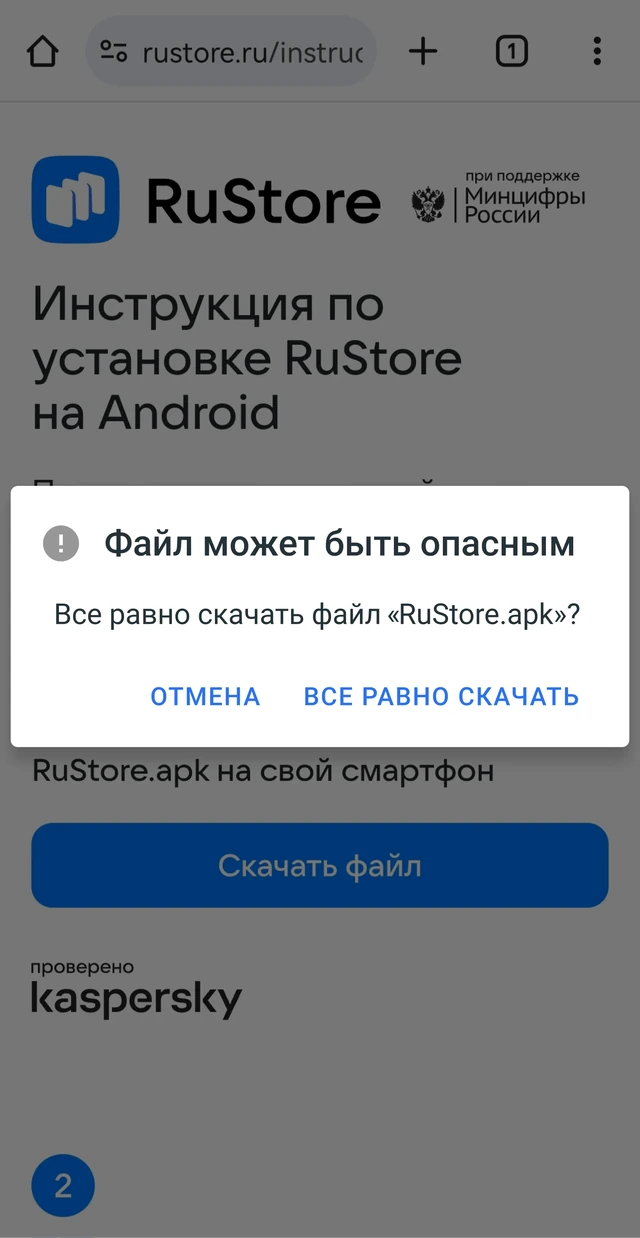
On your Android device, open the RuStore installation page and choose the download for your platform. Wait for it to finish, then open the file from the browser’s notification or Downloads section. The RuStore instructions refer to the installer as RuStore.apk.
If you are browsing on a computer, opening the same address on your phone is usually simpler. Renaming another file type to APK does not change its contents. If the download was interrupted, remove only the incomplete installer and download it again; this does not require removing an installed app.
Step 2. Allow the Specific Installation Source
If Android blocks the APK, select Settings in the prompt. Permission applies to one source app: for example, your browser if you opened its download, or your file manager if you opened the APK there. Enable the permission, return to the installer and confirm installation.
Menu names differ between phones. The Samsung instructions say to open Settings, search for Install unknown apps, select the source and allow it. Other devices may place the setting under Apps or Security. Following the system prompt helps you reach the setting for the particular app that needs permission.
You can switch this source permission off after installation. Do not enable it for every app at once. If device management or a separate protection feature prevents changing the setting, first establish the reason shown.
Is a Permission Prompt the Same as a Threat Warning?
No. A message saying that your browser cannot install apps concerns the installation source. A request for camera or location access concerns a feature of an installed app. A security warning about harmful software is a different issue and should not be treated as a required step in an ordinary installation.
Google Play Protect can check apps, warn about risks and block harmful actions. If such a warning appears, save its exact wording, stop installation and verify the file against its download source. Allowing a browser to install APKs is not a finding that a particular file is safe.
Step 3. Install Your Chosen App Through RuStore
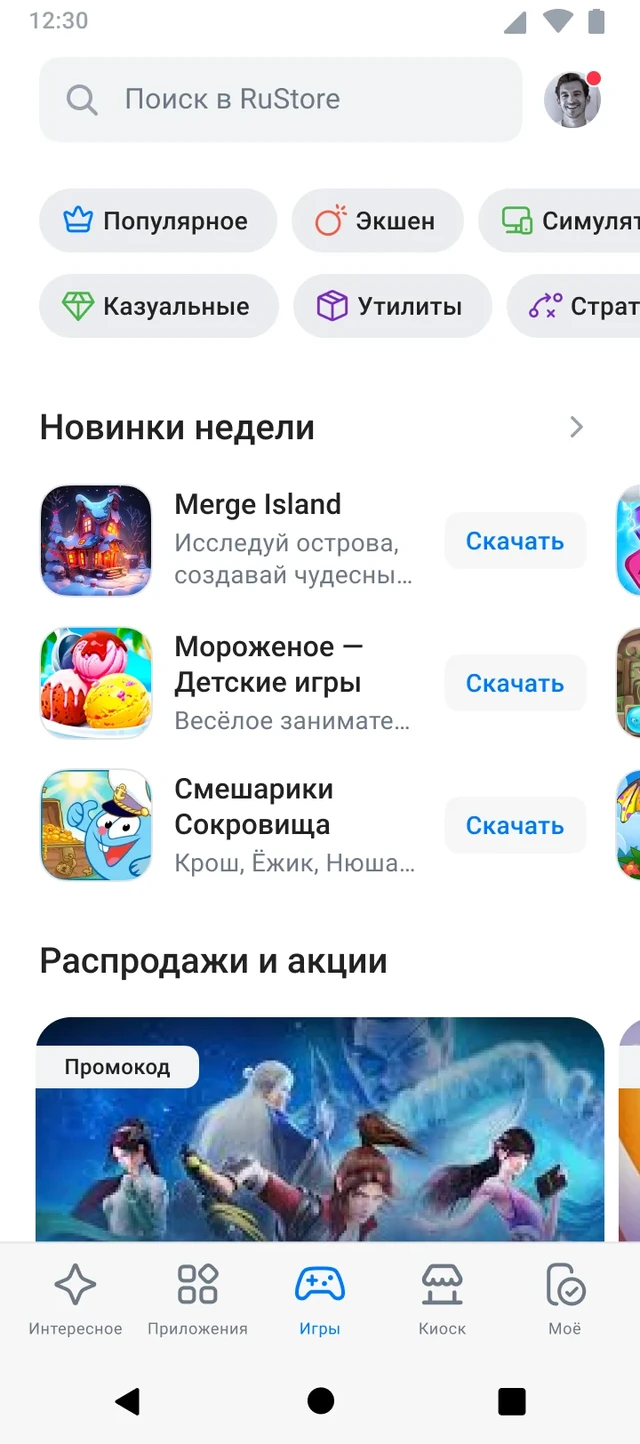
Open the installed RuStore and search for the app’s name. Select the intended developer, open the listing and start the download. The first installation may require another source permission, this time for RuStore. The permission previously granted to your browser does not replace it.
In Install unknown apps, select RuStore and allow installation from that source, then return to the selected app. This sequence is covered in the app installation documentation. Wait for completion and open the app separately.
Free installation generally does not require signing into the store. If a feature needs payment or the service’s own account, that is a separate request. Signing into RuStore does not sign you into your bank, messenger or game account.
How Do You Update the Store and Keep Installed Apps?
RuStore itself: use its update prompt or the Моё (My) section and Обновление RuStore (RuStore update). If you postponed an update, return to Моё. The store update guide also describes installing a current APK over the existing RuStore installation. A normal update does not require removing the store first.
Apps in the catalogue: open Моё → Все приложения → На этом устройстве (My → All apps → On this device) and choose Update beside the app. Where offered, Update all handles the available updates together. These steps appear in the app update documentation.
An update and a reinstall after deletion are different operations. Before removing an app, confirm that you know how to sign back in and that important documents, messages or game saves exist outside its local data. Having an account does not establish that your latest game session or file has finished syncing.
What if Downloading or Installation Fails?
Start with the stage and the exact error message. “App not installed” alone does not identify a cause; the Android version, any existing installation and the app opening the APK all matter.
| What You See | What to Distinguish | Next Action |
|---|---|---|
| The download never finishes | The file has not arrived; installation has not started | Check the connection and free storage. Download again from the source; do not open an incomplete APK. |
| Installation from this source is blocked | The browser, file manager or RuStore lacks permission | Open settings from the prompt and allow only the named source app. |
| A package parsing or unsupported-version error | An incomplete file, wrong package or incompatible system | Match the platform and Android version, then download the correct package again. Renaming a file does not fix compatibility. |
| A package conflict during an update | A different build of the app is already installed | Identify its previous source. Keep the working version until you have checked saved data and the developer’s instructions. |
| An app download repeatedly stalls in RuStore | A queue, connection or background restriction problem | Restart the store and check background data access. If needed, clear RuStore’s cache specifically, not its data. |
| Security protection reports a harmful app | This is not an ordinary source-permission prompt | Stop, retain the warning text and verify the file’s source; include those details when contacting support. |
| An administrator blocks the action | A work-profile or parental-control restriction | Contact whoever manages the device; downloading again does not change the policy. |
RuStore provides an update troubleshooting guide. Build conflicts can also involve digital signatures: Android checks signing compatibility for updates. Matching names and icons are not sufficient.
How Do You Confirm That Installation Is Complete?
Check the result against your task: RuStore opens, the selected app is installed and launches separately, and you can access the service account you need. If the store works but signing in or paying within an app fails, the next question concerns that service or payment method.
For support, prepare your device model, Android version, RuStore version, app name, failing step and error text. A screenshot is useful after removing personal information. If the problem concerns a link or wording on this page, use the website contact form; differences between stores are covered in the comparison.
Frequently Asked Questions
Where Is the File if the Download Notification Has Disappeared?
Open Downloads in the browser used to get the APK, or your file manager’s downloads folder. Confirm that the file finished downloading. If you open it through a different app, that app becomes the installation source requiring permission.
Can You Delete RuStore.apk After Installation?
Yes. The installer file and installed app are separate objects. Removing the APK from Downloads does not uninstall RuStore. If you need the file again, obtain it again from the download source.
Why Is Installation Permission Requested Twice?
The first installation source was your browser or file manager. When installing a game, RuStore becomes the source. Android manages permission separately for each source app, so browser permission does not extend to the store.
Must You Remove an Old RuStore Version Before a Normal Update?
No. First use the built-in update or install the current APK over the existing version. If a conflict occurs, establish its cause before removing anything: reinstalling can affect local settings and data.
How Is Clearing Cache Different From Clearing Data?
Cache holds temporary files. Clearing app data is a broader operation that can reset the app’s state and account session. If advice concerns cache, do not choose the nearby Clear data or Clear storage command without understanding the consequences.
Why Is RuStore Installed but the Chosen Game Is Missing?
The store’s APK contains RuStore itself. Find and install the game separately after opening it. If the game listing is unavailable, the cause may concern the device, region or publication of that game rather than the completed store installation.
Will This APK Work on Android TV, an iPhone or a Computer?
This guide concerns a phone or tablet. Use RuStore’s separate instructions for TV devices; an Android APK cannot install on an iPhone. Installation through an emulator on Windows or macOS has not been tested here and is not guaranteed.